facebookbuys Coupon Threshold Checklist
facebookbuys Coupon Threshold Checklist
facebookbuys Coupon Threshold Checklist
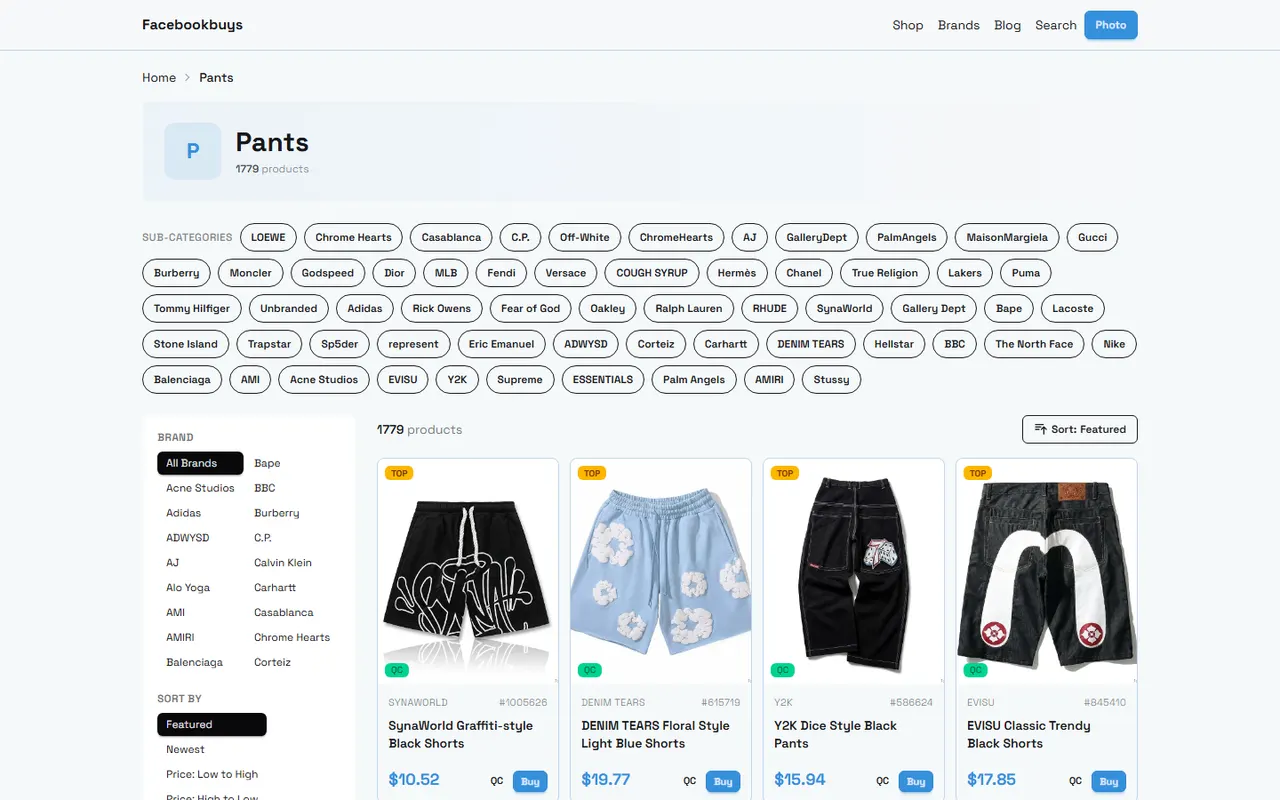
When a promotion says "spend X get Y," "applicable to specified categories," or "discount after buying a certain quantity," the hard part isn't usually finding the deal—it's determining whether you actually meet the conditions. A product page may show the product name, category, price, and multiple purchase entry points all at once, but that information doesn't automatically mean the coupon threshold is satisfied.
This article tackles one specific problem: how to organize the product conditions on facebookbuys pages into a reviewable checklist, and decide before placing an order whether a coupon falls under "met," "pending confirmation," or "not applicable." By the end, you should be able to do three things: record evidence, calculate conditions, and decide whether to proceed to checkout verification.
This article does not apply to exclusive offers visible only after logging in, personalized offers that appear dynamically only on the payment page, and does not replace the calculation of destination country taxes, shipping fees, or customs charges. The verification date before publication was October 6, 2026; prices, inventory, promotional wording, and link statuses may change, so re-check before actual use.
First Determine the Coupon Threshold to Judge
Don't start with "is this product cheap or not"—instead, break the coupon question down into verifiable conditions. Common thresholds include:
Meeting a minimum product amount, such as the product subtotal reaching a certain value.
Meeting a minimum number of items, such as buying a specified quantity in one order.
Limited to a specific category, brand, store, or product collection.
Requiring a specific coupon code, or requiring entry through a particular campaign portal.
Limited to a specific time window, region, account status, or payment method.
Cannot be combined with other offers.
For facebookbuys pages, the currently visible catalog evidence includes product names, categories, some product prices, QC badges, and multiple purchase platform entry points. Taking the pants catalog as an example, the page shows a large number of products under the Pants category, with prices listed for different items; this information can help you build a candidate list of products, but it cannot alone prove that a particular item meets all the conditions of a given promotion.
Therefore, threshold determination should be split into two layers: the first layer is the page-visible conditions, and the second layer is the campaign rules or final checkout confirmation. Only when both layers align is it appropriate to mark the coupon as "met." 🔎
What Coupon Fields Should You Record from the facebookbuys Page
When recording, distinguish between "what I saw" and "what I can conclude from it." At minimum, save the following fields:
Product name: Keep the full name as shown on the page; don't just record the brand or color.
Product ID: If the page shows an ID, record it as well for easy reference.
Product category: For example, Pants, Shoes, or Accessories.
Product price: Record the original currency and the number of decimal places as displayed; do not convert to another currency and overwrite the original value.
Page status: Record whether the product is still accessible, or if there's a blank page, redirect, or error.
Coupon fields: Record the coupon code, minimum amount, minimum quantity, applicable categories, start and end times.
Evidence location: Record the page name, screenshot, or save time to avoid relying only on memory.
Conclusion status: Use "met," "pending confirmation," or "not applicable."
Prices in the current catalog page can serve as input for the product subtotal, but the page summary does not show complete promotion rules, shipping, taxes, or checkout results. Therefore, any judgment about the final savings amount should remain "pending confirmation" until the campaign rules or checkout page provides sufficient evidence. 💰
How to Set Up Threshold and Product Condition Columns in Google Sheets
You can create a simple review table in Google Sheets. Each row represents one product or one cart item; don't cram multiple products into a single notes cell, as that makes subsequent calculations error-prone.
Field | Purpose | Example Entry |
|---|---|---|
Product Name | Corresponds to the visible name on the page | SynaWorld Graffiti-style Black Shorts |
Product ID | For looking up the specific product | The ID shown on the page |
Category | To judge if it falls within the campaign scope | Pants |
Unit Price | To calculate the product subtotal | Record in the original currency as displayed |
Quantity | To judge the item count threshold | 1, 2, 3 |
Product Subtotal | Unit price times quantity | Unit price × quantity |
Rule Minimum Amount | To compare against campaign requirements | Enter "pending confirmation" if not found |
Rule Minimum Quantity | To compare against item count requirements | Enter "pending confirmation" if not found |
Category Condition | To judge if it meets the scope | Yes, No, Pending confirmation |
Time Condition | To judge if the campaign is still valid | Yes, No, Pending confirmation |
Conclusion | Summarize the review result | Met, Pending confirmation, Not applicable |
The product subtotal should only include the products themselves; do not mix shipping, taxes, or possible service fees into the "minimum product amount" unless the campaign rules explicitly state that those fees count toward the threshold.
If the product amount is in B2 and the quantity in C2, you can set the subtotal column as:
=B2*C2If the minimum amount is in D2, you can use a simple conditional to check the amount:
=IF(ISNUMBER(D2),IF(E2>=D2,"Amount met","Amount not met"),"Amount pending confirmation")Such formulas can only judge numeric conditions; they cannot automatically determine category restrictions, whether a coupon code is valid, or whether the campaign has expired. The sheet's purpose is to reduce repeated calculations, not to replace campaign rules. 📊
Check Category, Quantity, Amount, and Time Requirements One by One
First Verify Whether the Product Falls Within the Applicable Scope
The fact that a product appears in a category on the page does not necessarily mean it is within the promotion's scope. The campaign may apply only to a specific subcategory, specified brands, specified sellers, or individually listed product IDs.
When checking, break down the scope description from the campaign rules and compare it with each product row:
Is the category name exactly the same?
Does the brand name match the campaign restriction?
Is the product ID on the specified list?
Does the campaign exclude clearance, special-priced, or specific seller products?
Does the product need to be added to the cart from a specific campaign page?
If the campaign only says "some products apply" but does not provide a checkable product list, the category condition should be marked as pending confirmation, not assumed to apply.
Next Verify the Calculation Basis for Quantity and Amount
The minimum amount may be calculated based on the per-item price, product subtotal, pre-discount amount, or post-discount amount. The minimum quantity may also be calculated based on the number of items, distinct items, or quantity of the same item.
It's advisable to record three types of data:
Pre-discount product subtotal.
Post-discount product subtotal, if the checkout page shows it.
Shipping, taxes, and other fees, listed separately.
For example, if you have three items in the cart and the subtotal meets the threshold, but one item is not in the applicable category, then the "amount condition" may be met but the "category condition" is still not met. In that case, you cannot mark the entire cart as met just because the total is sufficient.
Finally Check Time and Account Conditions
Promotion time is a highly volatile fact. You need to record the campaign start time, end time, applicable time zone, and whether the coupon code has usage limits or account restrictions.
Mark the following as pending confirmation:
The page only says "limited-time offer" without a specific end time.
The end time uses an unspecified time zone.
The rules require login, but you only see the public catalog.
The coupon code needs to be verified at checkout, and the catalog page does not show its availability.
The campaign rules and product page updates are not synchronized.
Do not use an outdated screenshot to prove that the current coupon is still valid. A screenshot can prove that a page displayed certain information at a specific point in time, but it cannot automatically prove that it is still usable today. ⏱️
Use a Simple Table to Distinguish Met, Pending Confirmation, and Not Applicable
To avoid treating uncertain information as a coupon promise, use three statuses:
Status | When It Applies | Next Action |
|---|---|---|
Met | Product scope, amount or quantity, time, and necessary coupon code all have supporting evidence | Proceed to checkout to verify the actual discount |
Pending confirmation | Missing campaign text, account conditions, time, category list, or checkout verification | Do not count the coupon in the final budget; continue investigating |
Not applicable | Product is clearly out of scope, or amount, quantity, time conditions are clearly not met | Remove the coupon assumption and recalculate costs |
"Pending confirmation" is not a failure state; it's a protective state that prevents your budget from being affected by false savings. Especially when the page only provides product catalog information without showing the full coupon rules, using pending confirmation is more reliable than guessing.
What Are the Evidence Boundaries for Vague Promotional Descriptions
The following expressions often look like clear offers but actually lack critical conditions:
"Spend X save Y": Does not specify whether it's based on product amount or order total.
"Sitewide": Does not specify whether sale items, brands, or sellers are excluded.
"New customer exclusive": Does not define new user, login requirements, or validity period.
"Free shipping": Does not specify destination, shipping route, weight, or whether taxes are included.
"Automatic discount": Does not specify whether the discount is automatically applied in the cart or payment page.
"Limited time": Does not specify the end time or applicable time zone.
When encountering these descriptions, do not fill in the missing conditions yourself, and do not interpret the low price shown on the page as the post-promotion price. Record the original text, and list the missing fields as items for further verification.
Furthermore, the QC badge or purchase entry points in the facebookbuys catalog mainly indicate that the page provides relevant product information and subsequent processing entry points; they cannot be used to infer coupon eligibility, quality assurance, inventory guarantee, or final shipping costs. Product page information and promotion rules need to be cross-checked separately.
Complete the Coupon Threshold Review Before Placing an Order
Before placing an order, you can complete a final check in this order:
Save the product name, ID, category, unit price, and verification date.
Find the campaign rules text and record the minimum amount, quantity, scope, time, and coupon code requirements.
Calculate the product subtotal separately from the campaign threshold; do not include shipping, taxes, and service fees in the product amount by default.
Check whether each product is in the applicable category or on the specified list.
Enter the coupon code in the cart or checkout page and observe whether the system clearly shows the discount amount.
Record the pre- and post-discount amounts, shipping, taxes, and other fees.
If any item still lacks evidence, keep the entire coupon as pending confirmation and do not deduct it from the budget prematurely.
Final Judgment and Applicability Boundaries
This checklist is suitable for buyers who need to compare multiple products, categories, or promotional conditions simultaneously, especially those who organize facebookbuys catalog information into Google Sheets and then cross-check each item. It can help reduce the risk of missing conditions, double-counting, and mistaking catalog prices for the final payment price.
It is not suitable for guaranteeing that a coupon will definitely work, nor does it replace final confirmation of login status, checkout page, destination shipping, taxes, or customs requirements. If the campaign rules do not clearly specify the applicable scope or calculation basis, the safest approach is to retain the "pending confirmation" status and prepare your budget as if the coupon is not available.
The savings amount should be based on the actual pre- and post-discount difference shown on the checkout page; the main risks are coupon invalidation, category mismatch, time expiration, or different fee calculation bases. Only when the campaign rules, product conditions, and checkout results are all consistent is it appropriate to include the savings amount in your final shopping plan.
Browse our latest products and find your next favorite item.